
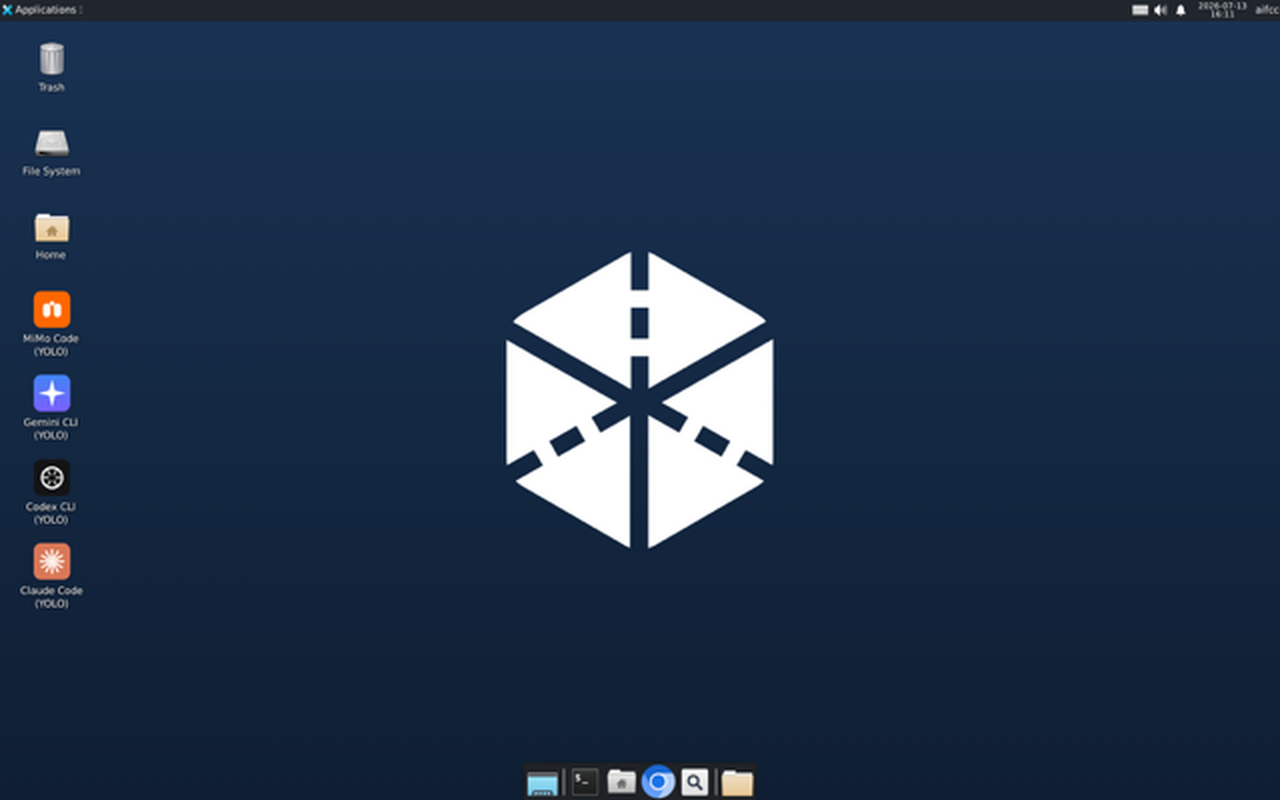
The AI runs as root. It doesn't ask - it does.
This virtual computer exists for one thing: running AI agents in full-permission "YOLO" mode, as the root sudo admin of their own machine. No permission prompts, no babysitting - Claude Code, Codex, Gemini and MiMo install, configure, build and break things at full speed. That's safe to allow, because the whole computer is hardware-sandboxed: the worst an agent can lose is itself, never your Mac.
Full sudo, YOLO mode
Made to run agents with permission checks off - --dangerously-skip-permissions, --yolo and friends. Here, the AI is the admin.
Installs anything
apt packages, toolchains, daemons, system services - no "may I?" dialog, no waiting for you to approve each step.
Reconfigures everything
/etc, cron, systemd, the desktop itself. Root means root - the agent shapes the whole system to the job.
Works unattended
Give it a goal and walk away. It builds, tests, breaks and fixes at full speed while you do something else.
Cannot escape
Hardware-isolated by Apple's Virtualization framework. Whatever the agent does in there stays in there - your Mac is never touched.
Worst case: Factory Reset
If an agent trashes its computer, one click gives it a brand-new one in minutes. Your Mac never even noticed.
1First start
Three steps to a complete, AI-ready Linux computer - walled off from your Mac.
2Files in, files out
Drag and drop, both directions. No setup needed.
INTO Linux
Drag a file from the Finder onto the Linux window. It lands on the Linux Desktop. Folders work too.
→ Linux DesktopOUT to your Mac
Drag a file inside Linux - a "Send to Mac" zone appears bottom-right. Drop it there, or right-click → Send to Mac. It appears in the Files from Linux window (tray button in the title bar), where you can drag it straight into the Finder.
→ Files from Linux → drag out, or auto-save to ~/Downloads/AIFCC3Everyday use
Copy & paste
Text, images, files - both ways. ⌘C on the Mac, paste in Linux.
Sound
Linux audio plays through your Mac's speakers.
Back to your Mac
⌘Tab as always. Linux keeps running until you stop it.
Your files persist
Home folder survives quitting, updates, even a system rebuild.
Throwaway sessions
Start one from the launch screen. Quit, and it never existed.
Factory Reset
Desktop menu → Factory Reset. Brand-new Linux computer.
Screenshot & record
Titlebar button, or aifcc screenshot / aifcc record.
SSH from your Mac
THIS Mac only, never your LAN. Run aifcc ssh for the command.
Updates
Through the App Store, like any app. Home folder always stays.
4Four AI agents, preinstalled
No install step. Sign in with your own account/key and go.
Claude Code
Ready. chrome-devtools-mcp pre-wired for browser automation.
Codex
Same chrome-devtools-mcp wiring.
Gemini CLI
Same chrome-devtools-mcp wiring.
MiMo
Preinstalled, but no chrome-devtools-mcp - its config schema rejects that key. Wire it yourself via mimo mcp.
apfel command backed by your Mac's on-device Apple Intelligence. On by default on macOS 26+.5Power user: Settings reference
Under ⌘,, in the app's own tab order.
| Tab | What it does | Default |
|---|---|---|
| General | Cores (1-8), memory (1-16 GB), display size, recording quality. Applies next launch. | 4 cores, 4 GB |
| Storage | Disk location, live usage, Factory Reset. Disks (~40-50 GB) live outside the app. | - |
| Drag & Drop | Where dropped files land inside Linux: Desktop, Home, Downloads, or custom. | Desktop |
| Mount Folder | A real hole in the sandbox - anything inside Linux, including AI tools, can read/change/delete it. Drag-and-drop stays sandboxed and needs no mount. | off |
| SSH Access | Guest sshd is always on, reachable only from THIS Mac. User/password both aifcc, or run aifcc ssh. | always on |
| MCP (AI Control) | "Let an AI control the desktop" + guest mirror. See MCP reference. | both on |
| apfel | Local apfel command backed by the Mac's on-device Apple Intelligence. No cloud, no keys. | on, macOS 26+ |
| Subscription | Free 3 months, then €49/year auto-renewing. Cancel in System Settings. | - |
| Legal | Terms, Privacy, Manage Subscription. | - |
6Power user: the aifcc CLI
Everything the GUI can do, the CLI can do too - most commands support --json for scripting or an AI to parse.
| Command | What it does |
|---|---|
| version | Print product name + version + build + git SHA (JSON). |
| vm-config | Validate + clamp a VM profile (--cpu --ram-gib --disk-gib), JSON. |
| lineage | Parse a golden lineage JSONL file and print rows (JSON). |
| status | Report VM disks, golden version, last shutdown + boot health (--container, JSON). |
| logs | Print the captured guest boot console log (--container, --tail N, --json). |
| diagnostics | One-shot diagnostic bundle: version + VM state + recent boot log (--container, JSON). |
| ssh | Print how to SSH into the running Linux desktop. |
| doctor | Installed app build vs this CLI's build, with an in-sync verdict (--json). |
| debug-log | The persistent app + guest-agent debug log (--container, --tail N, --json). |
| screenshot | Capture the Linux desktop to ~/Downloads (--window, --max-width N, --out PATH, --json). |
| factory-reset | Erase ALL VM state for a brand-new desktop. Requires --yes; refuses while running. |
| desktop | Control the Linux desktop: click / move / type / key / scroll / windows / activate / launch / exec (--json). |
| mcp | Manage MCP access: serve | enable | disable | status | guest | register. |
| record | Record a video of the Linux desktop to ~/Downloads (--seconds N, --quality, --out, --json). |
| apfel | on | off | status --json - the Mac's on-device AI, bridged into the guest. |
7Power user: drive it with an AI (MCP)
 A Model Context Protocol server (JSON-RPC 2.0, stdio) exposing the desktop as tools. Any MCP client can drive it - never anything on your Mac.
claude mcp add aifcc -- aifcc mcp serve   # register with an MCP client
aifcc mcp register                        # wire into the guest's own Claude Code
aifcc mcp serve                           # run the server directly
factory-reset has no MCP tool - never exposed. Both switches (host + guest mirror) are on by default on a fresh install; an explicit OFF sticks.
| Tool | Description | Args |
|---|---|---|
| aifcc_status | Report the Linux desktop's disks, golden version, boot health. | - |
| aifcc_version | aifcc version + build + provenance. | - |
| aifcc_ssh_info | How to SSH into the running Linux desktop (address + user). | - |
| aifcc_logs | Recent app + guest-agent log lines. | - |
| aifcc_diagnostics | One-shot diagnostic bundle: version + VM state + recent boot log. | - |
| aifcc_doctor | Installed app build vs this CLI's build + an in-sync verdict. | - |
| aifcc_debug_log | The persistent app + guest-agent debug log. | tail (int) |
| aifcc_vm_config | Resolve a VM profile (clamped). | cpu, ramGib, diskGib (ints) |
| aifcc_screenshot | Capture the desktop (or active window) to a PNG, returned inline as base64. Defaults to a token-cheap width. | window (bool), maxWidth (int, default 1280) |
| aifcc_desktop_click | Click the pointer at guest pixels (x, y). | x, y, button, double |
| aifcc_desktop_move | Move the pointer to guest pixels (x, y). | x, y |
| aifcc_desktop_type | Type literal text into the focused window. | text |
| aifcc_desktop_key | Press a key or chord (xdotool syntax, e.g. Return, ctrl+c). | combo |
| aifcc_desktop_scroll | Scroll the wheel by N (negative = down). | amount |
| aifcc_desktop_windows | List open windows (id, class, geometry, title). | - |
| aifcc_desktop_activate | Focus/raise a window by title or class substring. | target |
| aifcc_desktop_close | Close a window (graceful) by title or class substring. | target |
| aifcc_desktop_maximize | Maximize a window by title or class substring. | target |
| aifcc_desktop_minimize | Minimize the active window. | - |
| aifcc_ssh_enable | Enable the guest SSH server (open SSH access to the desktop). | - |
| aifcc_ssh_disable | Disable the guest SSH server (close SSH access). | - |
| aifcc_desktop_launch | Launch a desktop app by its .desktop id. | app |
| aifcc_desktop_exec | Run a shell command as the desktop user; returns rc/stdout/stderr. | command |
| aifcc_record | Record a video of the Linux desktop. | seconds (1-600), quality (low|medium|high) |
8For AI agents
- Machine-readable index: /llms.txt
- Full CLI table: #cli-table above (15 rows)
- Full MCP tool table: #mcp-tools above (24 rows)
- Server:
aifcc mcp serve- JSON-RPC 2.0 over stdio, protocol2024-11-05 - Requires user consent (Settings → MCP) - on by default on a fresh install
factory-resetis never exposed over MCP
You can control a full Linux desktop running on my Mac via the "aifcc" MCP server.
Available tools: aifcc_status, aifcc_diagnostics, aifcc_logs, aifcc_screenshot
(full desktop or active window; maxWidth to save tokens), and desktop control -
aifcc_desktop_launch, aifcc_desktop_exec, aifcc_desktop_windows, aifcc_desktop_click /
move / type / key / scroll, aifcc_desktop_activate. Screenshot first, then act.
Factory reset is intentionally not exposed.
Same prompt the app's Settings screen offers via "Copy prompt for an AI" - this page is its durable, linkable version.
9Pricing
One price. No tiers, no add-ons, no usage metering.
10Questions
What can an AI actually control?
With consent (Settings → MCP, on by default), an AI can screenshot, click, type, scroll, manage windows and run shell commands inside Linux - never your Mac, never Factory Reset.
I dragged a file out - where is it?
Your Mac's Desktop by default (change it in Settings → Send to Mac). The Linux dialog names the exact folder.
How much disk space does it use?
It needs about 34 GB free to set up, and grows to roughly 50 GB as you use it. That data stays on your Mac after you delete the app - run Factory Reset first if you want it gone.
Text is too small / too big.
Settings (⌘,) → display size. Applies next launch.
Is my Mac safe?
Yes - Apple's hardware virtualization sandbox. No access to your files unless you mount a folder yourself.
Something looks wrong - how do I report it?
Help → Email Support, Desktop menu → "Report a Problem", or the Feedback & bug reports section below. Mention the build from the badge.
11Feedback & bug reports
Found a bug, hit something confusing, or have an idea for AIFCC? One inbox reads all of it.
For bug reports, include your build number (Settings → About) and what you expected to happen.